Copy Text from an iPhone Screenshot: Live Text or Free OCR
Open the screenshot in Photos and long-press the text to copy it with Live Text. If Live Text misses it, use a free OCR tool in your browser.
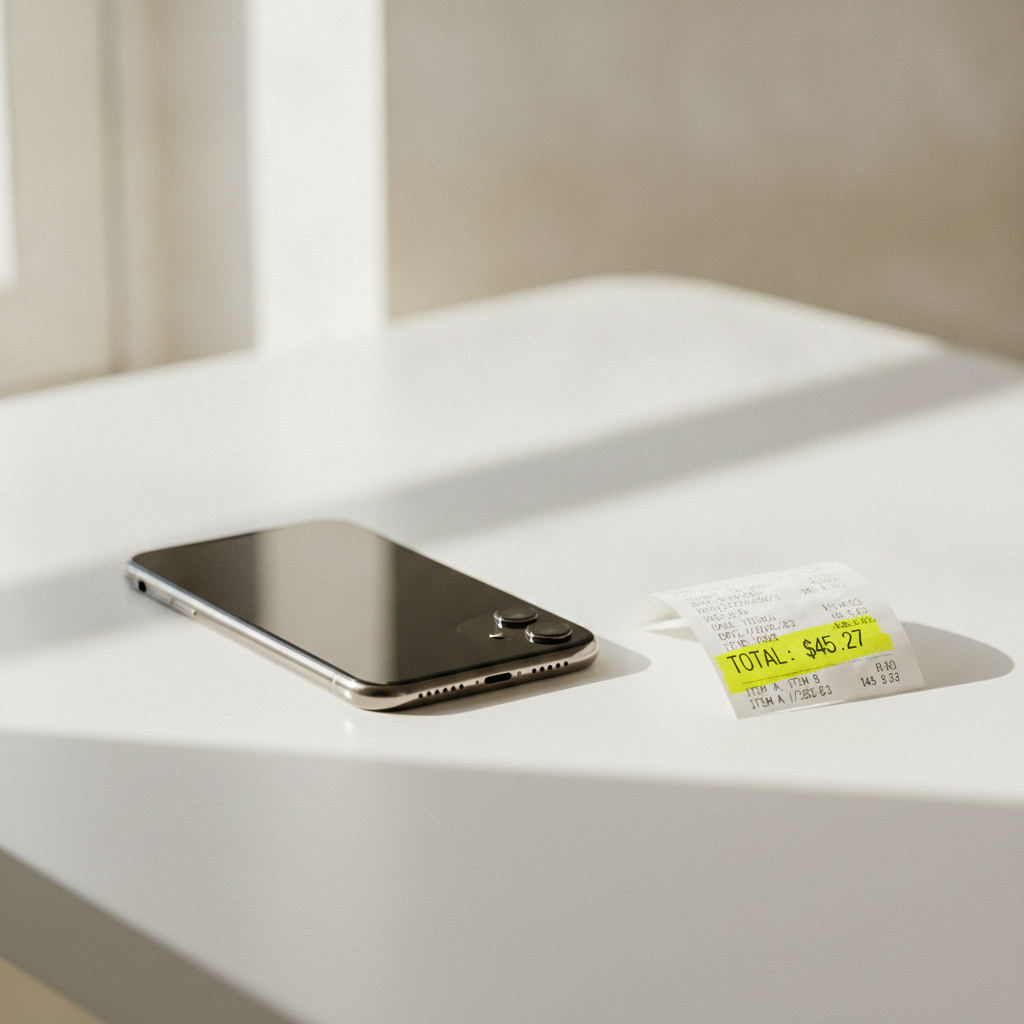
You screenshotted it because it was faster than copying. Now you need the words out and your phone has no idea what to do with you.
Skip the steps: drop the screenshot into Pathine's free Image to Text tool.
Every iPhone user has hit this: an address in a text from a friend, an error message in an app, a slide from a meeting, a paragraph from a PDF that won't let you select text. The screenshot worked perfectly — every character is in the photo. Getting those characters back out as something you can paste is the part nobody talks about.
The reason it feels harder than it should be
Live Text works great while you're in the Photos app. You open the screenshot, look for the little corner badge, tap, drag, copy. The trouble is that only helps when you're already in Photos, looking at the image, with time to spare. The moment the screenshot is one of twenty things in your camera roll, or the text you need is buried on slide fourteen of a PDF you screenshotted, the flow falls apart.
What most people try first:
- Long-press the text in the screenshot. Only works on screenshots taken in the last few minutes, and only if the image is open in front of you. Once it's in your camera roll, the option is gone.
- Type it back out by hand. A 30-second job becomes five minutes, with at least one wrong character you'll only notice later.
- Send the screenshot to a friend. Now they have the problem too.
None of these scale. None of them are a workflow. They're workarounds.
What actually works: paste the screenshot into an OCR tool
OCR — optical character recognition — has been around for decades, and it's quietly gotten almost embarrassingly good. A modern model can read printed text from a crooked, slightly-blurry iPhone photo of a printed page, and it'll pull out the words in about a second. The catch is that good OCR is too big a model to live in a browser tab, so a tool that does it well has to send the image somewhere to be read.
This is the trade-off nobody flags clearly: if a website can read the words in your photo, the website has your photo. Free tools that don't tell you this are doing one of three things — running a worse model locally, charging you later in some other way, or just keeping the image. The only honest move is to say so out loud, scale the image down before sending it, and never write it to disk.
The Image to Text tool does this. It works on JPG, PNG, WebP, HEIC, and AVIF up to 8MB. Drop a screenshot in, wait a second, get editable text back.
The two-minute workflow that replaces retyping
- Take the screenshot the way you already do. Side button + volume up. Nothing special.
- Open pathine.com/tools/image-to-text in Safari.
- Tap the upload area and choose the screenshot from your library — or, if it's still on your clipboard, paste it in.
- Wait about a second. The text appears in a box you can edit.
- Copy it into Notes, Messages, the address bar, wherever it needs to go.
For full-page screenshots of articles you want to keep, you'll usually want to crop to just the paragraph first — most editors let you do this in two taps. Smaller image, faster round-trip, less of your screen leaves the device.
The privacy part, said out loud
Most tools on Pathine — the image compressor, the format converter, the metadata stripper, even the background remover — actually run in your browser. Your file never leaves your phone. Image to Text isn't one of them, and the page says so at the top before you upload anything.
What happens when you use it:
- The image is scaled down on your device before it's sent — enough resolution to read small print, less than what your phone camera originally produced. Less of your screen crosses the network than you uploaded.
- The image is held in memory for the second or two the request takes, and never written to disk or to a database.
- The model returns the text. Nothing else.
Is there a daily limit? Yes — a free tool without an account needs one, or it becomes somebody's free API. It's generous for a person and useless for a script. The tool tells you what's left before you upload.
When OCR is still the wrong answer
OCR is fast and good. It's not magic. A few cases where it falls short, so you know when to reach for something else:
- Numbers in financial documents. The model is very accurate on printed text, but a misread digit in an amount is the error that actually costs something. Always glance at totals before relying on the output.
- Handwriting that's a scribble. Modern OCR is much better at handwriting than the old version, but your own shorthand notes are still mostly your own problem.
- PDFs that already have selectable text. Open the PDF in a real reader first and copy from there. OCR is for when the text is locked inside an image.
For everything else — error messages, addresses, slide content, screenshots of social posts, photo-of-a-receipt workflows, photographed book pages — paste it into Image to Text and the words come back as text. Two minutes becomes one second.