Why does Instagram make my photo look blurry?
Instagram downscales feed photos to 1080px wide, then JPEG-compresses them. iPhone P3 color gets flattened to sRGB. Here's the two-minute fix.
You took a sharp photo. You posted it. Now it looks like someone smeared a thumb across the sky. Instagram did not break your camera. It resized the file, squeezed it again as a JPEG, and, if you shot on an iPhone, converted the color.
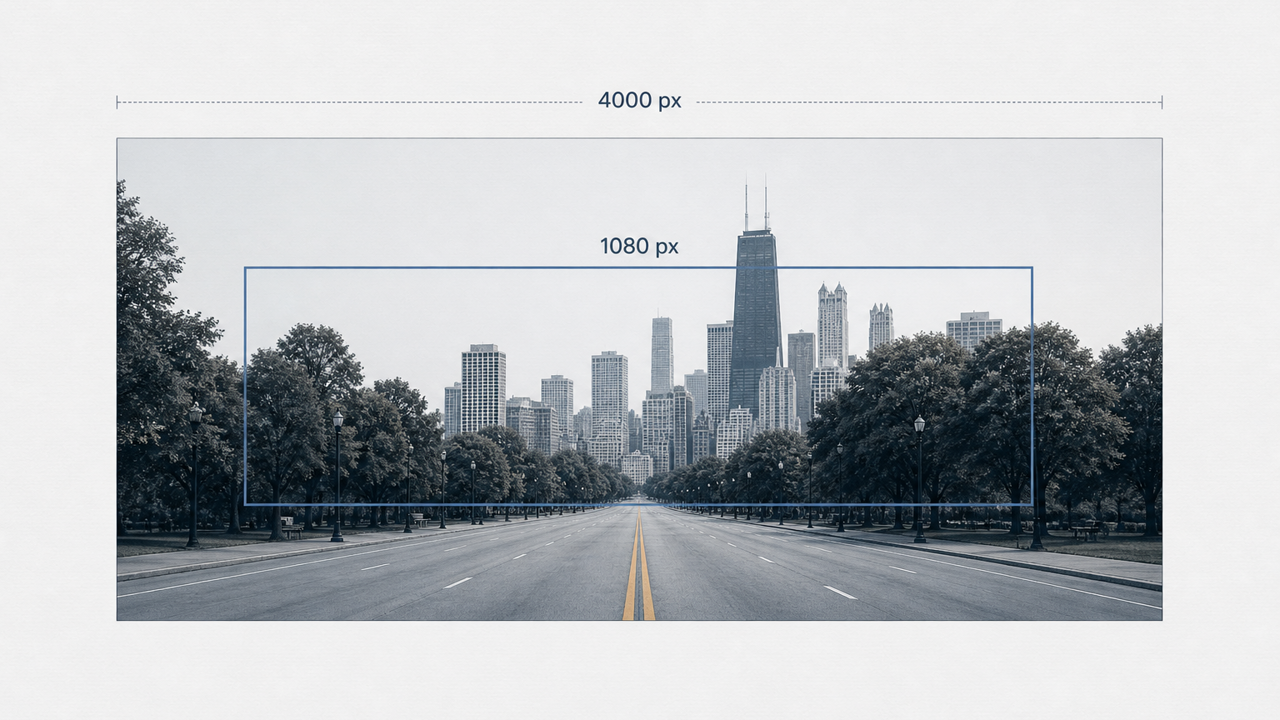
A typical 12-megapixel iPhone photo is around 4000 pixels wide. Instagram's own help docs say feed photos are uploaded at the best quality they support, up to a width of 1080 pixels. Everything wider gets sized down. Then it is JPEG-compressed on top of that. Two different injuries, one sad result.
Resize, then compress. That is the whole trick.
Instagram will keep a photo at its original resolution only if the width is already between 320 and 1080 pixels, and the aspect ratio is in a range they support (their docs: 1.91:1 to 3:4). Share something larger and they size it down to 1080 pixels wide. Share something tiny and they enlarge it, which looks worse.
Downscaling 4000 pixels to 1080 is not a gentle nudge. It is roughly a quarter of the width. Fine hair, fabric weave, the serifs on a shop sign: those are the first things to go. Landscapes forgive it. A photo of a menu does not.
Then the JPEG. Instagram does not publish the exact quality setting they use, and anyone quoting a secret bitrate is guessing. What you can see is the outcome: blocky skies, muddy text, a general softness that was not in Camera Roll. That is lossy compression doing what lossy compression does.
If you already squeezed it, they squeeze it again
This is the part that feels personal. You exported a "small" JPG so the upload would go through. Instagram compressed that file a second time. Soft, blocky, sad. Two generations of JPEG artifacts stacked on each other.
A huge, barely-compressed original is not the answer either. Instagram still has to crush the pixels. The less bad path is to arrive already at about 1080 pixels wide, as a JPEG that still looks like the photo, so their second pass has less work to do. You will not beat their compressor. You can stop feeding it a file it has to destroy twice.
Why it looked fine in Camera Roll
iPhones (since the iPhone 7) capture in Display P3, a wider color space than the web's sRGB. Extra room in the reds, oranges, greens. Your phone's screen can show that. Camera Roll looks punchy because it is still in that world.
Instagram, like most of the web, converts to sRGB. The conversion is not a filter you turned on. Colors that do not exist in sRGB get flattened into ones that do. The photo is not blurrier, exactly. It is duller, which your eye reads as worse. This is also why a screenshot of the same post on your phone can look different from the file you uploaded.
HEIC is the default iPhone format (Settings, Camera, Formats: High Efficiency). Most Compatible saves JPEG instead. Instagram can take HEIC now, but someone still has to convert it. Mentioned, moving on.
The path you used to upload matters
Same photo, three doors:
- Share from the Instagram app's picker. Instagram gets whatever the OS hands it, then does the resize and compress itself.
- Save a copy to Files, then pick that file. You are sending the version you already exported, including any damage you already did.
- AirDrop to a laptop and upload from the desktop composer. You get a real file, real dimensions, a chance to look at the JPEG before it leaves.
None of these is magic. The desktop path is just the one where you can see the file before Instagram does.
Try it on the photo you were about to post
The Pathine Image Compressor shows original vs compressed side by side, with the exact file sizes. That is the experiment. Not a lab study. Your photo.
Drop the image. Leave quality around 80% for a photo, around 90% if it is a screenshot or anything with text. Look at the two versions. If you cannot tell them apart, that is the file you wanted. If the type goes crunchy, drag the slider up and look again.
Compression does not change pixel dimensions. A 4000-pixel-wide original stays 4000 pixels wide, just lighter. If the file is a huge camera original, resize it to about 1080 pixels wide first with the Image Resizer, then compress. Instagram is going to do that resize anyway. Doing it yourself is how you keep the sharp version.
The two-minute version
- If the photo is thousands of pixels wide, open the Image Resizer and set width to about 1080. Download that.
- Drop the result on the Image Compressor. Quality around 80% for photos, 90% for screenshots and text.
- Look at the before and after. If it still looks like your photo, download it.
- Upload that file to Instagram, not the Camera Roll original.
Instagram will still recompress it. Starting from a sane 1080-pixel JPEG is better than handing them a 12-megapixel original and hoping.
The privacy part, said out loud
Both of those tools run in your browser. The image is never uploaded. You can turn the wifi off and they still work. That is the opposite of the usual "compress your photos" site, which sends the file to a server, squeezes it there, and asks you to trust the delete. Pathine does not get the photo. There is nothing to oversell: the pixels stay on the device because that is how the canvas API works.
A few straight answers
Does compressing shrink the dimensions?
No. Only the file size changes. Resize if you want fewer pixels. Compress if you want a smaller file of the same picture.
What quality should I use?
80% is the usual sweet spot for photos. Screenshots and images with hard edges or type hold up better around 90%, because JPEG artifacts show up first on those edges.
Will Instagram still make it worse?
Yes. They resize anything over 1080 pixels wide and they JPEG it. You cannot opt out. You can stop giving them a file that has already been crushed, or a giant original they have to crush from scratch. Look at the side-by-side on Pathine first so the damage is a choice, not a surprise.